
Managing a VMware environment almost always involves also managing the physical servers. Anyone who’s done this knows how much time is spent checking each server model and validating where it fits on the Broadcom compatibility matrix.
I always wondered if there was a smarter way to update server firmware without having to check the compatibility matrix. At some point, I discovered that there is — at least for Dell servers. With iDRAC Enterprise, you can use OpenManage Enterprise “for free” to manage firmware updates from a single location.
Note: OpenManage Enterprise is provided as a virtual appliance by Dell.
The first time I tried this method… did not go well. A firmware update outside the compatibility matrix caused a server to stop working completely. Hard way to learn.

To avoid this issue, I found a better way to obtain updates that would not break servers — using offline catalogs.
Custom Baseline
Dell provides an ESXi firmware catalog file that is updated periodically. With this file, you can create a custom catalog in OpenManage and use it to perform firmware updates more safely.
Before you begin, make sure you have a web server hosting the catalog file in a URL that OpenManage can access.
How to Use It
Open OpenManage Enterprise and go to Configuration > Firmware/Driver Compliance.

Select Catalog Management.
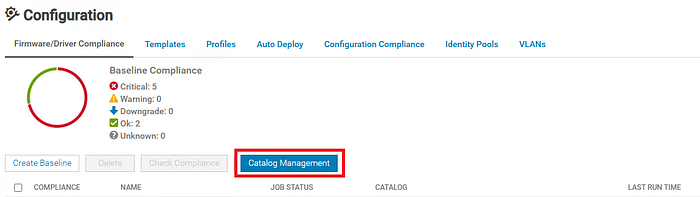

Fill in the details to create the firmware baseline:

- Name: Name of the new catalog.
- Catalog Source: In this case, choose Offline Catalog since you are using a catalog file hosted on your server.
- Share Type: You can use several protocols to map the catalog XML file — HTTPS is preferred.
- Share Address: The URL of the web server hosting the catalog.
- Catalog File Path: The path to the
catalog.xmlfile on the web server. - Username/Password: If the site requires authentication
Once the catalog is created, go back to Configuration > Firmware/Driver Compliance and add a new compliance rule based on that catalog.

Now you’ll be able to see all the firmware details for the selected servers.

If you want to update a server, make sure the ESXi build is current, place the server in maintenance mode, and then go in OpenManage to Configuration > Firmware/Driver Compliance > My_baseline > Make Compliant
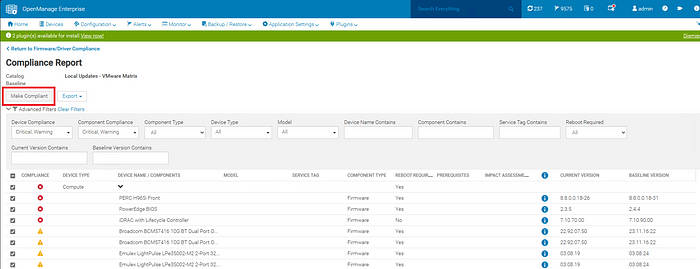
You can also monitor the progress of the upgrade under Monitor > Jobs.

Done, now the servers will be automatically updated.
Considerations
- If you are using iDRAC version 8, ensure it is updated to the latest version.
- If you are using iDRAC version 9, ensure it is at least version 4.00.00.
- In both these cases, you may need to manually update iDRAC first before OpenManage can handle the rest of the firmware updates.
Automation
In my own environment, I was able to create a script that periodically checks Dell/Broadcom online firmware catalogs and downloads the latest version automatically. I scheduled this script to run weekly using the Windows Task Scheduler.
Conclusion
Managing firmware updates on physical servers in VMware environments can be complex and time-consuming, but using Dell OpenManage Enterprise makes the process more efficient and safer. Hopefully this article can help you with that!
 lanznot.com
Leave a comment