
If you’re planning to deploy VCF 9.0, it’s important to prepare your environment in advance.
In my last article, I explained how to deploy the VCF Installer and how to set up an offline depot.
But now the real deployment begins.
Although deploying infrastructure can be fun, when it comes to VCF deployments we need to plan everything carefully—even in a lab environment.
During the planning phase, Broadcom provides a useful spreadsheet called the VCF Planning and Preparation Workbook. You should download it and fill it out with all the required information for your VCF deployment.
I downloaded the spreadsheet myself and filled it in with the details of my lab environment. You can check it out here.
Requirements
Before you begin the process of deploying a new VCF platform, you must prepare the ESX hosts. Broadcom created a documentation that you can find it here.
VCF Deployment
Note: The deployment and tips were performed in a lab environment. Although some of these tips may also work in a production environment, you should carefully consider any potential impacts before applying them.
The deployment process begins with the option to import existing components from your current infrastructure. Since I’m deploying everything from scratch, I won’t select any of these options.

Under the General Information panel, you will select the version, VCF instance name, and management domain name, among other settings.

See below how the structure will look after deployment.

Enter the VCF Operations information.

Enter the VCF Automation information.

Based on the configured name prefix, the VMs will look like this:

Enter the vCenter details.

Enter the NSX details.

Enter the host details.

Note: The hostnames must match with the certificate SAN; otherwise, the validation will failed.
Note: Certify that you have followed all steps for host preparation.
Enter the network details.

Note: If you are using the vSAN and vMotion networks as layer 2 only, your switches should be configured with the appropriate VLANs.
Since I’m using nested ESX hosts, I configured a standard switch to provide the required Layer 2 networks.
- nested_vcf_san – This network does not have a gateway and is only accessible within the same broadcast domain.
- nested_vcf_lan – This network has a gateway connected to it, providing Layer 3 connectivity. However, the vMotion network remains Layer 2 only.


In a nutshell:
| Switch | Usage | MTU | Routing | VLAN |
nested_vcf_san | Management | 9000 | L3 | TRUNK |
nested_vcf_lan | vSAN | 9000 | L2 | TRUNK |
Under the Distributed Switch configuration, I choose the ‘Storage Traffic Separation’ option.
Note: Ensure the MTU configured on each VDS and VMkernel adapter matches both each other and the physical infrastructure. Also ensure that the correct vmnics are selected.


Note: The NSX overlay network must have a gateway and proper routing to the management network.


Enter the SDDC Manager information.

Review the information.

Download the json spec file.

Run the validation pre-check.
During the vMotion and vSAN validation checks, you may see a warning stating that the gateway is not accessible. This is expected because both networks are Layer 2 only and therefore do not have a gateway.

Click the Deploy button.

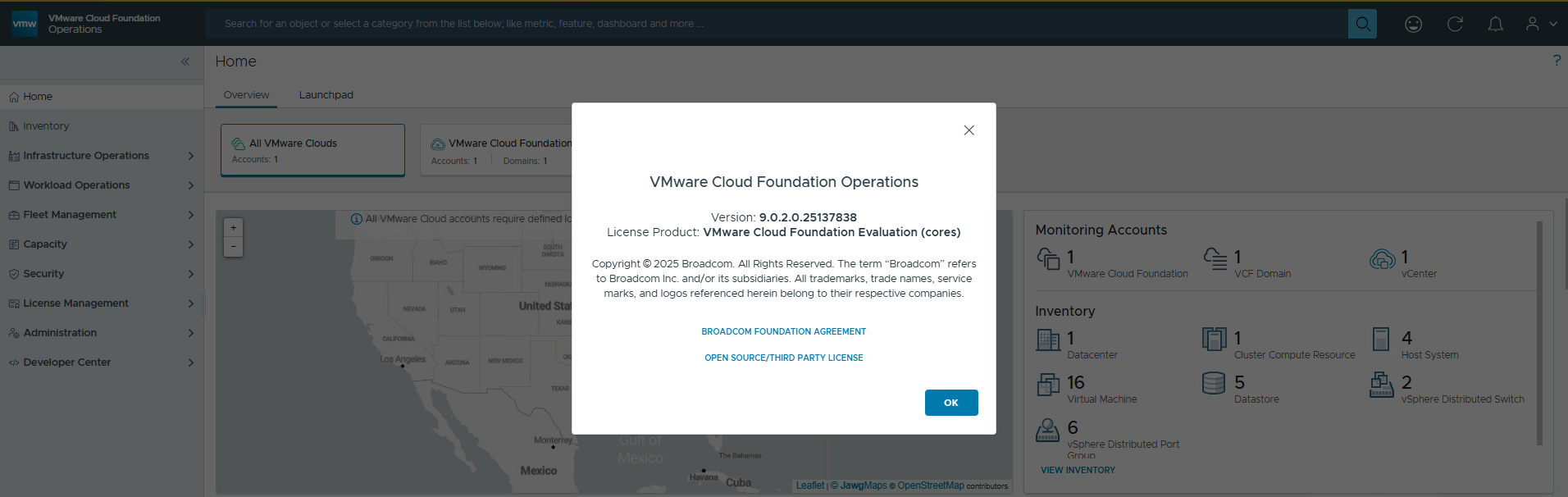
After some time, the deployment will be completed.

Quick Tips
ESX Hosts configuration
- Configure your host with the appropriate number of NICs
In my lab, I used four NICs: two for the LAN VDS and two for the vSAN VDS.

- Ensure sufficient CPU and RAM resources are available based on your deployment type.
For example, to deploy VCF Automation, each host must have at least 24 cores (or vCPUs).
- cpuId.CoresPerSocket
If you’re running a nested environment, set cpuid.coresPerSocket to match the number of vCPUs. In my case, 24.

- Ensure the datastore used by the nested ESXi hosts has enough available space.
If your datastore run out space during the install, this will break the deployment.
- If you’re using vSAN ESA, make sure to have an NVMe controller and remove the old SCSI controller.

- If you are using Nested ESXi 9.0.2 ova, ensure that all OS disks reside on the same datastore.


vSAN may encounter issues if it detects incompatible disks during the disk claim process. Like this one:

- If you are using a nested enviroment, configure the host port group as it follows:

If you want to understand why this is a requirement on nested labs I recommend the William Lam (Why is Promiscuous Mode & Forged Transmits required for Nested ESXi?) and Chris Wall (How The VMware Forged Transmits Security Policy Works – Chris Wahl) articles.
Pre-checks failures
During the deployment, you might encounter some issues in the validation process. Some of them are:
- vSAN ESA Compatibility
Explanation: If the disks or controllers are not compatible with vSAN ESA, the VCF Installer will report the following error:
No vSAN ESA certified disks found on the ESXi Host #######
Remediation: No vSAN ESA certified disks found on the ESXi Host #######. Provide ESXi Host with vSAN ESA certified disk
Bypass: SSH to the VCF Installer appliance and run the following commands.
# echo "vsan.esa.sddc.managed.disk.claim=true" | tee -a /etc/vmware/vcf/domainmanager/application-prod.properties# systemctl restart domainmanagerLink: Enhancement in VCF 9.0.1 to bypass vSAN ESA HCL & Host Commission 10GbE NIC Check
- vSAN ESA HCL Database
Explanation: Even if your hardware is compatible with vSAN ESA, you might go through the following error:
Host ####### is not HCL compatible
Remediation: Please check the logs for further details or check Broadcom Compatibility Guide at https://compatibilityguide.broadcom.com
Bypass: This may occur because the vSAN HCL database is older than 90 days. To resolve this issue, you may need to update the vSAN HCL database by following the KB KB412606.
- 10GbE network Check
Explanation: The VCF Installer verifies whether the ESXi management interface is at least 10Gbps. If not, it will report the following error:
The speed of vmnicX on host ####### is 1000 MB/s but must be at least 10GB/s according to minimum hardware requirements.
Bypass: SSH to the VCF Installer appliance and run the following commands.
# echo "enable.speed.of.physical.nics.validation=false" | tee -a /etc/vmware/vcf/domainmanager/application.properties# echo 'y' | /opt/vmware/vcf/operationsmanager/scripts/cli/sddcmanager_restart_services.shLink: Disable 10GbE NIC Pre-Check in the VCF 9.0 Installer
- MTU 1600 Check
Explanation: The minimum required MTU for the NSX Overlay network is 1600 bytes. A MTU of 1700 bytes is recommended to address the whole possibility of a variety of functions. If you host doesn’t meet the requirements, the following error will be reported:
ESX Host XXXXX vmkping from ####### to ####### doesn't support MTU 1600 for network NSXT_HOST_OVERLAY but smaller 1500 MTU packet passes.
Bypass: SSH to the VCF Installer appliance and run the following commands.
# echo "validation.disable.network.connectivity.check=true" | tee -a /etc/vmware/vcf/domainmanager/application.properties# echo "nsxt.mtu.validation.skip=true" | tee -a /etc/vmware/vcf/domainmanager/application.properties# echo 'y' | /opt/vmware/vcf/operationsmanager/scripts/cli/sddcmanager_restart_services.shLink: Bypassing the ESX Tunnel Endpoint (TEP) 1600 MTU Check in the VCF Installer
I’ll be back in the future to share new findings about Day-N operations.
Leave a Reply